ACCESS @ Cerritos - Alternative Text
What is Alternative Text
Alt text describes the important information or purpose of an image for someone who cannot see it.
| Instead of writing: | Try: |
|---|---|
|
❌ Image of a map |
✅ Map showing California's major physical regions. |
Keep it simple:
- Be brief. Focus on what matters and keep it under 125 characters.
- Describe the purpose. What does the image add to the content?
- Don't say “image of” or “picture of.” A screen reader already identifies it as an image.
- Don't repeat nearby text. If the information is already provided in the surrounding text, you don't need to
- repeat it.
- Mark decorative images as decorative. If an image adds no instructional or informational value, let assistive technology skip it.
 The 10-Second TEst
If a student couldn't see this image, what would they need to know?.... That's your alt text.
Your Canvas Fix This Week
As you work in Canvas, check the images in your Pages, Assignments, Announcements, Discussions, and Quizzes. When you find an image without useful alt text, take a few seconds to fix it.
Step-by-Step Instructions:
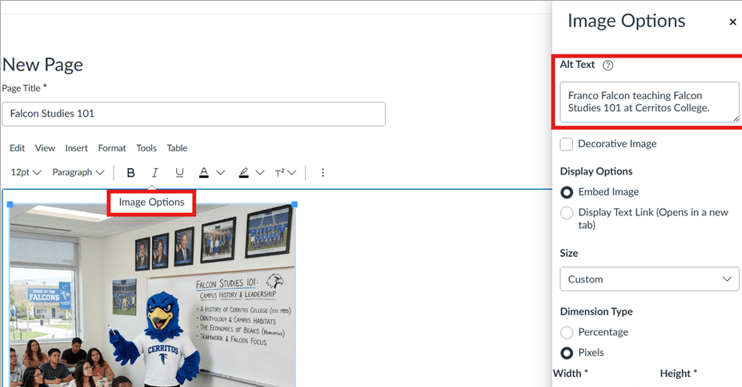
- Open your Canvas page and click Edit.
- Select the image you want to add Alt Text to.
- Click Image Options on the pop-up toolbar.
- Add your Alt Text on the side panel, then click Done.
- Click Save to save your changes.
Remember!
One image at a time = a more accessible Canvas course. You got this!
Questions?
Need help making your Canvas content more accessible? Please feel free to reach out to the CTX Office or DE Coordinators.