ACCESS @ Cerritos - Clear Links

Previously, we focused on alternative text and how meaningful descriptions help ensure images are accessible to everyone. Now, let’s shift our gears and turn our attention to another small change that can make a big difference in how students navigate your Canvas courses: clear, descriptive links.
These may seem like small details, but they add up. Each time we make an accessibility improvement in our courses, we are taking another step toward creating more student-ready Canvas courses—and improving our overall UDOIT accessibility scores along the way. You don’t have to fix everything at once. The goal of ACCESS @ Cerritos is to make accessibility part of the everyday work we already do, one manageable change at a time.
So, as you work through your courses, remember the goal: one small step at a time gets us closer to 90% UDOIT score—in all of our Canvas courses by end of Fall 2026.
What is a Descriptive Link
A descriptive link is a hyperlink whose clickable text clearly communicates the purpose or destination of the link.
| Instead of writing: | Try: |
|---|---|
|
❌ No URLs: www.cerritos.edu |
✅ View the 2026–2027 Academic Calendar to… |
Why it matters: Screen reader users often navigate a page by moving from link to link. When links
are descriptive, they can quickly understand what each link is for and navigate to
the content they need—without having to spend extra time figuring out where a link
leads.
 The 10-Second TEST
If I only saw the linked words, would I know where this link takes me?
If YES → you're good.
If NO → make the link text more descriptive.
Your Canvas Fix This Week
As you work in Canvas, look at your Pages, Assignments, Announcements, Discussions, Quizzes, Modules, and other course content.
When you find a URL or vague link text such as “click here,” “read more,” or “learn more,” take a few seconds to update it with clear, descriptive text that tells students where the link will take them.
Step-by-Step Instructions:
- Open your Canvas page and click Edit.
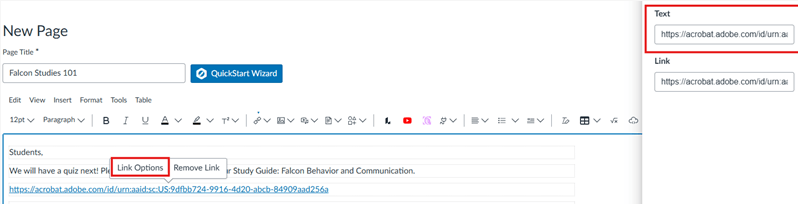
- Locate the hyperlink you want to fix and select it.
- Click Link Options on the pop-up menu.
- In the side panel, enter your descriptive text, then click Done.
- Click Save to save your changes.
Questions?
Need help making your Canvas content more accessible? Please feel free to reach out to the CTX Office or DE Coordinators.