ACCESS @ Cerritos - Captioned Videos
Videos are a powerful way to engage students and bring course content to life—but for videos to be accessible to everyone, they need accurate captions. Adding captions is another simple way to make our Canvas courses more student-ready and inclusive.
As we continue improving accessibility across our courses, these changes are helping us move toward our shared goal of 90% UDOIT accessibility in all Canvas courses by the end of Fall 2026. This week, let’s focus on making sure our videos are accessible to everyone.
What You Need to Know About Captioned Videos
- Videos MUST be captioned. Videos should have accurate captions that are available to all students.
- Ensure captions are TURNED ON by default. Students should not have to figure out how to turn them on.
- Captions are accurate, synchronized, and readable. Auto-generated captions are a starting point, but they should be reviewed and corrected for spelling, grammar, punctuation, names, terminology, and timing when needed.
- Captions include important audio. Include meaningful sounds, speaker identification, and other information students need to understand the video.
- Don't rely on captions alone. Important information presented visually should also be explained in the audio or provided in an accessible format.
- Borrowed videos should have captions. Before sharing a video from another source in Canvas, check that the captions are available and accurate.
 The 10-Second TEST
Press play. Can a student immediately access the spoken content without having to turn anything on?
If YES → you're on the right track.
Your Canvas Fix This Week
As you work in Canvas, check the videos in your Pages, Announcements, Modules, and other course content.
Step-by-Step Instructions:
- Open Canvas Studio and locate the video you want to add or edit captions.
- Select the video to open it.
- Select the Captions tab.
- Choose the auto-generated captions you want to review.
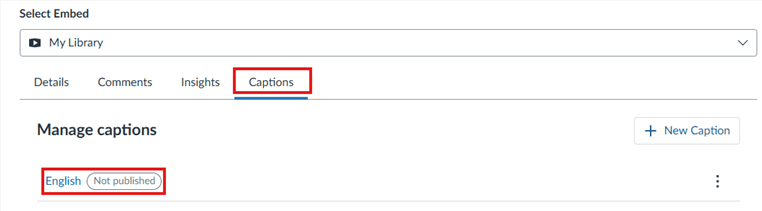
- Review and edit the captions as needed. Correct spelling, grammar, punctuation, names, terminology, and timing. Please note: Canvas Studio automatically saves any changes you make.
- When you’re finished reviewing the captions, click Publish.
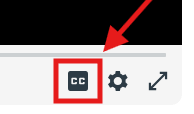
- Turn on Closed Captions (CC). Select the CC icon on the video player. The icon should appear black when captions
are turned on.
Resources
Need support?! Submit a captioning request through Media Services:
Questions?
Need help making your Canvas content more accessible? Please feel free to reach out to the CTX Office or DE Coordinators.