Falcon’s Toolkit: Equip Your Flight to Academic Achievement!
Questions? Concerns? Please let us know! (Provide your student ID and details about the issue.)
Our commitment to your success is simple: dedicated support throughout your entire educational journey. With the Falcon’s Toolkit, you will be equipped to “master your flight” with the Degree Planner® and Schedule Builder® tools! Read on to learn more about how these tools will help you!
FAQs
The Degree Planner is your academic GPS.
It's an automatic tool that instantly tells you:
- Exactly which courses to take to finish your degree.
- The right order to take them.
Think of it as the fastest, clearest game plan to make sure you graduate on time!
It automatically tells you which classes you need to take and the correct order to take them. This prevents you from wasting time and money on the wrong courses.
By showing you a clear sequence of courses, it makes sure you stay on track and graduate when you planned.
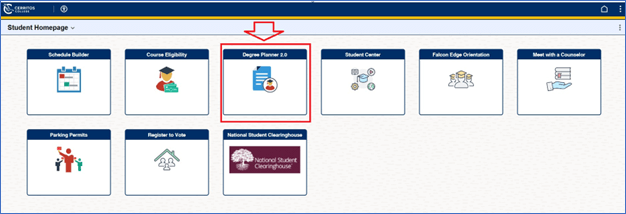
The tool is located on your dashboard when you log into MyCerritos. Click on the tile labeled “Degree Planner 2.0” to open.
Yes, totally! We strongly recommend you meet with your counselor! They'll help you get the full game plan so you know exactly:
- The must-have requirements
- The best courses to take
- Your clear path and timeline
Since the Degree Planner pulls in requirements from your major, you won’t need to customize it.
Absolutely! This tool is designed to show you the entire game plan—all the terms you need—so you can see your full path to graduation or transfer right now.
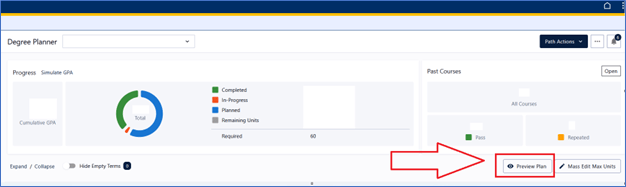
Great question! Just click on Preview Plan (located under Past Courses) to view your progress—that shows all the courses you've already finished toward your degree requirements!
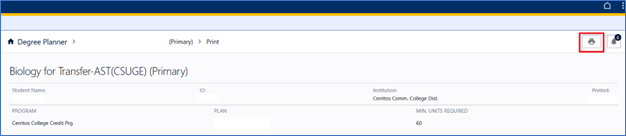
The Preview Plan page also allows you to print (paper or pdf) with the printer icon located in the top right next to the Notification bell icon.
It is a resource that is an automated scheduling tool to assist students in building an optimum schedule.
Optimizes Workable Schedules: The application allows you to craft class schedules that effectively accommodate your complex lives both on and off campus.
Tailored Non-Availability: You can define your specific non-available times (work, childcare, appointments, etc.) to generate the most efficient schedule that fits their needs.
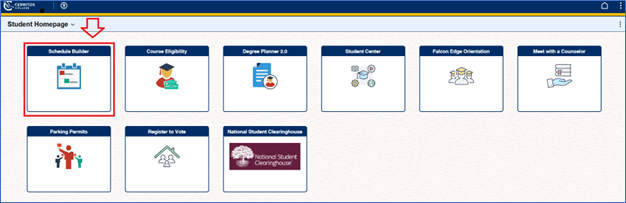
The tool is located on your dashboard when you log into MyCerritos. Click the tile labeled “Schedule Builder” to open.
You've got this, but no one expects perfection with the first attempt!
That first schedule you build? Treat it like a draft, not a final contract. Learning how to adjust and pivot is an essential college skill, and we've got the people and tools ready to back you up when you need to change direction.
Stay flexible, give yourself grace to find your rhythm, and try another schedule.
You can make up to ten schedules that you can compare to decide which works for you.
To lock in your perfect schedule, follow these simple steps:
- Use the Compare feature to view and weigh your best options.
- Favorite the schedules that fit your needs.
- Choose your final schedule and use it to validate, add courses to your cart, or enroll directly!
Watch the Advanced video to learn how to use the features.
Aim for 4–5 classes per semester—that usually puts you in the 12–16 credit hour range for full-time status. Before you enroll, check with a counselor to confirm the right number of credits for your major and timeline.
If they required courses, meet with a counselor or check with the academic department. They may be able to identify an alternate class section, future offering, or suitable course substitution.
Yes, that's what we're here for! Utilize your network: Counseling and Learning and Career Pathway (LCP) Success teams are all key resources. Reach out whenever you need guidance.
Videos
Degree Planner

Schedule Builder