Simple Syllabus
Simple Syllabus
Enabling instructors to quickly personalize and publish interactive class syllabi.
Cross-listed Courses?
If you are using Canvas for cross-listed courses, please use the following link:

Simple Syllabus is a centralized, template-driven platform that enables instructors to quickly personalize and publish interactive class syllabi.
Also in Simple Syllabus
Support is available Monday – Friday, 8am – 5pm. Support is accessible by the following methods:
- Email your question to Janet Mitchell-Lambert or Faculty Help
- Place a support ticket through the Knowledge Base, or
- Use the in-site help form (accessed by clicking the question mark icon in the top left corner when logged into your Simple Syllabus site)
Get Started
Simple Syllabus can be accessed within Canvas or directly through the Simple Syllabus portal.
Simple Syllabus is an application that makes the creation of syllabi convenient and efficient for instructors by providing a template with fields for all required and optional elements (eliminating the need to consult changing campus language); accessing and updating of previous syllabi is easy, as are tools generating visually interesting syllabi that include images, audio, and video; much of the necessary information will be centralized and automatically pre-populated into syllabi templates (ie: SLOs and Course Descriptions).
Using Simple Syllabus can help the college fulfill several requirements.
- Ensure Up-To-Date Campus Language: Instead of faculty having to locate/copy/paste the updates to syllabus items such
as SLOs or SAS statements every semester, Simple Syllabus pre-populates the statements
automatically with no time or effort required by faculty.
- Meeting disability accessibility standards for all syllabi. All syllabi must be in a format that meets disability accessibility standards. Simple
Syllabus formats all syllabi to these standards in a digital format, and it exports
to Word in appropriate formats. Simple Syllabus also meets mobile usage accessibility
standards.
- Upload Syllabus To Canvas instead of Rosters+. In the past, faculty had to upload a copy of each of their syllabi every single semester to Rosters+. Simple Syllabus automatically loads to a central library. Faculty can also, with one click, roll their syllabi over from term to term.
In Spring of 2023, the Faculty Senate passed a resolution to require faculty to put their syllabi in Canvas in Simple Syllabus instead of Rosters+ as a mean to meet Accreditation Standards. In Fall 2024, the Faculty Senate approved a campus-wide adoption date of Fall 2025. For Spring 2025, after you complete and submit your new Simple Syllabus, select the download PDF option, save, and upload this PDF to Rosters+. In Fall 2025, you will only submit your syllabus through Canvas and Simple Syllabus.
- How to Access, Edit, and Publish Syllabi in Simple Syllabus (10 Minutes)
- How to Access Simple Syllabus (2 Minutes)
- Simple Syllabus Canvas Calendar Integration
- How to Edit Simple Syllabus
- How to Publish Your Simple Syllabus
- How to Make Simple Syllabus Your Home Page in Canvas
- How to import syllabus content from a different instructor into your syllabus. This is useful for new faculty
- How to add and reorder components
- How to work with your Simple Syllabus Faculty Dashboard
This is the standard method of accessing Simple Syllabus.
- Go to Canvas and select the course to which the syllabus applies.
- Simple Syllabus is now available on the Navigation Menu of Options on the left side of the Canvas screen.
- If this is your first time accessing Simple Syllabus through Canvas, you will need
to move Simple Syllabus to your desired location on the navigation pane.
- Go to Settings > Navigation.
- Drag Simple Syllabus to place it in the appropriate spot on your menu.
- Hit Save.
- Select "Simple Syllabus" from the course navigation.
- A frame within the screen should appear with an editable version of the syllabus.
- You can begin editing your syllabus.
- You can either begin typing directly in an open box or select the
 to make edits.
- You can either begin typing directly in an open box or select the
- Make sure to Save, where applicable, after editing information. If you need to make
a change, select the.
- Select Submit when all required sections are complete.
Here are the steps to enable Simple Syllabus in a Canvas class site.
- Go to your class in Canvas.
- Choose the Settings tool from the left-hand course navigation menu.
- Choose the Navigation tab.
- Find Simple Syllabus in the list of tools available.
- Click the ellipsis to the right of the tool title and choose Enable.
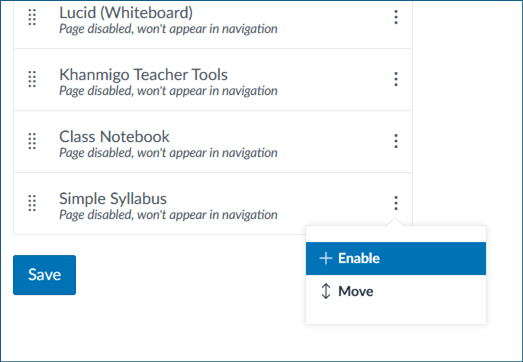
- When done, click Save.
- Refresh your page to see it in the navigation menu.
- Click the Sign In button above.
- If not already logged in:
- Select Click here to log in using your Cerritos College credentials.
- Fill out all boxes marked “Required”.
- You can either begin typing directly in an open box or select the to make edits.
- You can either begin typing directly in an open box or select the
- Make sure to Save, where applicable, after editing information. If you need to make
a change, select the .
- Select Submit when all required sections are complete.
This is the standard method of accessing Simple Syllabus.
- Click the Sign In via Canvas button above.
- After signing in to Canvas, if needed, select the course to which the syllabus applies.
- Select "Simple Syllabus" from the course navigation.
- A frame within the screen should appear with your course’s syllabus.
A component in Simple Syllabus is a specific section of your syllabus that contains key information about your course, like learning outcomes, required materials, or assignment descriptions. Each component is individually structured and may be auto-filled by Cerritos College or customized by you. Think of components as building blocks that work together to create a complete, organized syllabus that’s easy to read and navigate.
Types of Components in Simple Syllabus
- Auto-Filled Components by the College
These sections are preloaded with institutional data and cannot be edited. They include:- Instructor name
- Course title and ticket number
- Student Learning Outcomes (SLOs)
- Official course description
- Faculty Senate–Approved Campus Information
These components contain standardized language (e.g., Student Accessibility Services, Basic Needs) designed for consistency across syllabi. They are:- Optional to include
- Editable to fit your tone or teaching style
- Settable to “invisible” if you choose not to display them
- Custom Components
These are sections developed by individual faculty or departments to meet specific course needs or teaching preferences. You control the content, structure, and visibility. Examples include:- Course schedule
- Assignment breakdowns or rubrics
- Communication preferences
- Multimedia sections tailored to student engagement
Creating a New Component
You can add a new component to your Simple Syllabus in one of two ways.
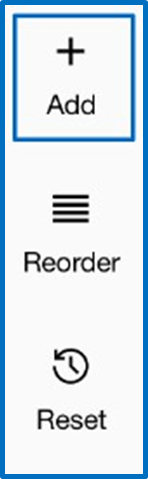
Option 1: At the top of the Simple Syllabus page, there is a plus symbol over the word “Add”.
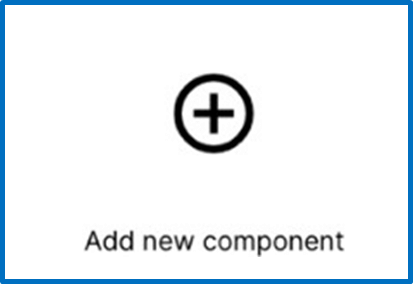
Option 2: At the bottom of the page, there is a plus sign in a circle over the words “Add a new component”.
Both options will pop open the “Create new component” screen where you will need to enter a name for the component and then click “save.”
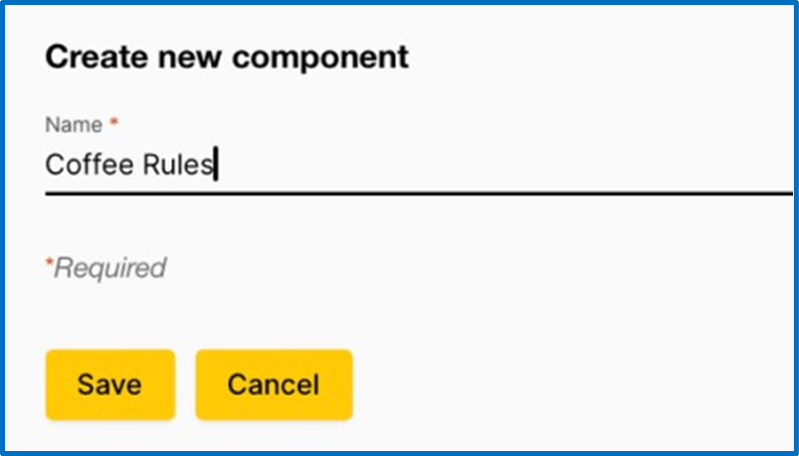
The new component will appear at the bottom of the Simple Syllabus page.
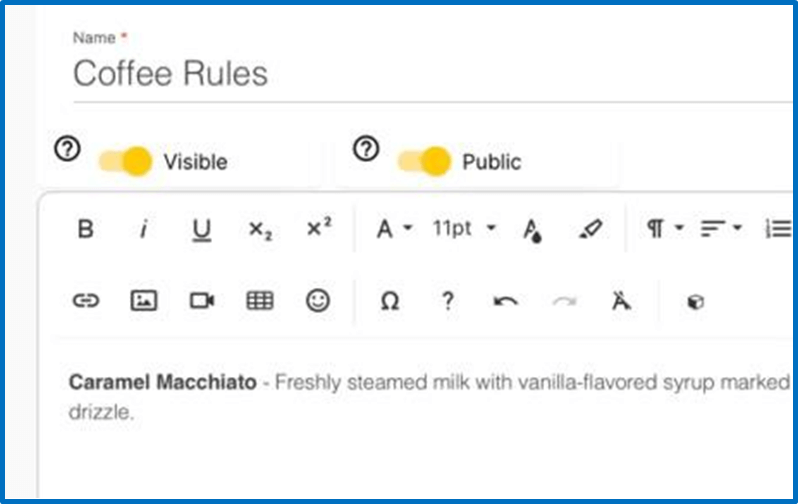
Reordering Components in Simple Syllabus
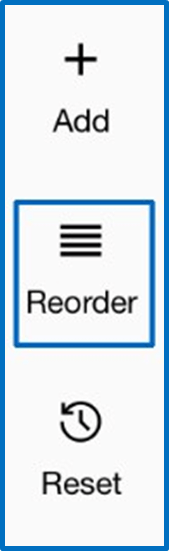
You can reorder the components of your Simple Syllabus by using the “Reorder” option at the top of the page.
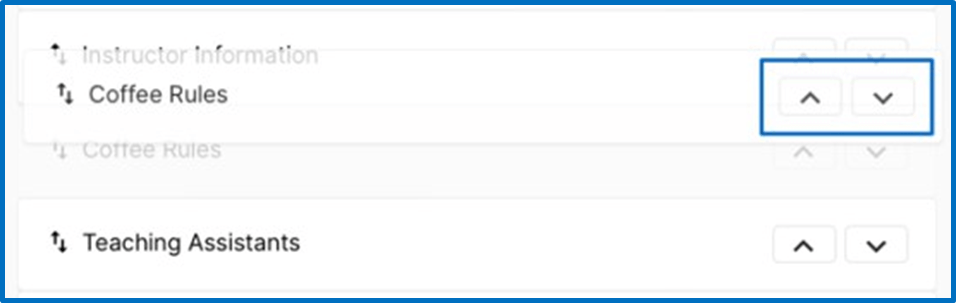
You can either drag and drop the component’s name into the new location or use the up and down arrows to move it to the desired location. Once the component is where you would like it, click the “close” button at the bottom of the list.
The component will then be moved into that spot in the syllabus.
The content from your most recently submitted syllabus will automatically populate your current syllabus. If you prefer to start from a different syllabus than the one that auto-imported, you can click 'Replace with a different syllabus' at the top of the publisher to search for and import the syllabus of your choosing.
Here is a step-by-step guide on how to copy/import an existing completed Simple Syllabus into a new syllabus. This method can be used to copy your own syllabi or those of a different instructor.
- Go to the Canvas course that you would like to copy/import an established Simple Syllabus.
- Click on the edit button in the upper left-hand corner.

- Click on the pop-up tab at the top of the page:

- Pause for a moment to allow it to populate with information. You will then see a list
of your current syllabi. Click on the one you would like to use and it will import
it to the current syllabus.
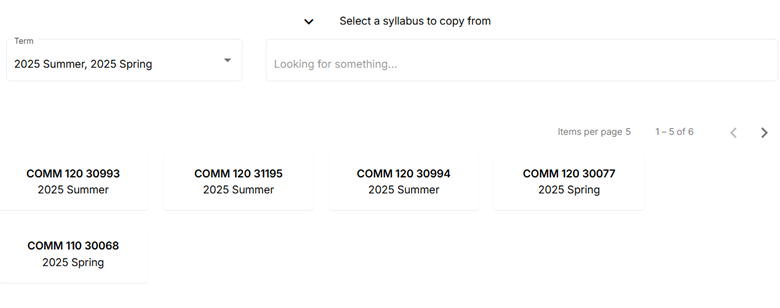
- If you do not see the syllabus you would like to use OR you would like to import another
instructor’s syllabus, enter the course ticket number in the “Select a syllabus to
copy from” box.
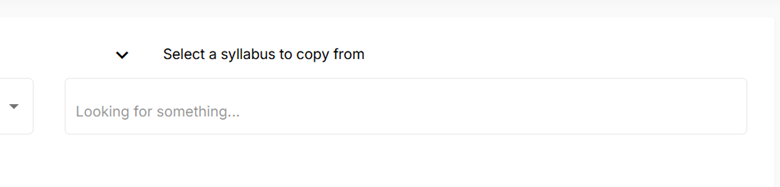
- You can now review your syllabus and then hit submit to post.
When you open a new course in Simple Syllabus, you will see the question "Replace with a different syllabus?" at the top of the page. Click on this question and choose an already published syllabus. This allows you to keep the course SLOs, description, and key information while importing your class policies and other details.
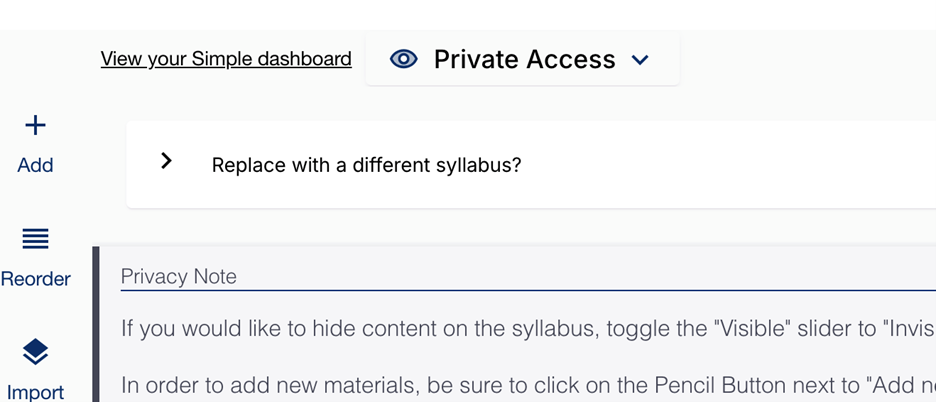
The content from your most recently submitted syllabus will automatically populate onto your current syllabus. If you prefer to start from a different syllabus than the one that auto-imported, you can click 'Replace with a different syllabus' at the top of the publisher to search for and import the syllabus of your choosing.
Importing Components from Another Syllabus
The Import tool allows you to import content from any published Simple Syllabus from Spring 2024 or later. The syllabus access settings must be set to Public or Campus.
To begin, navigate to the syllabus you want to import content into, and select the
Edit button to the left.
Once the publisher opens, select the Import button in the upper left.
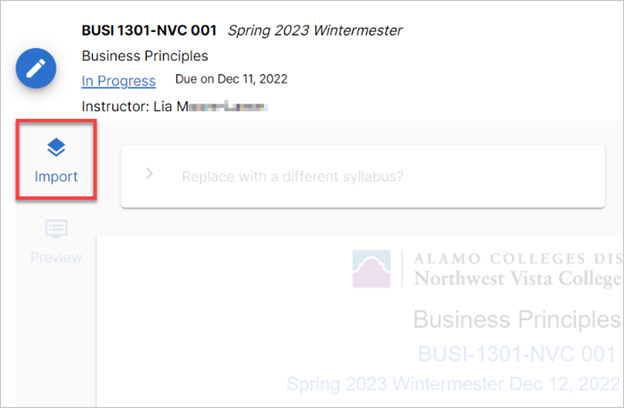
A three-step dialog window will appear:
- Select Source: Use the available search fields to locate and select the syllabus you wish to import
content from. It can be one of your own syllabi you have edited or submitted previously,
or a syllabus that has been published by another instructor.
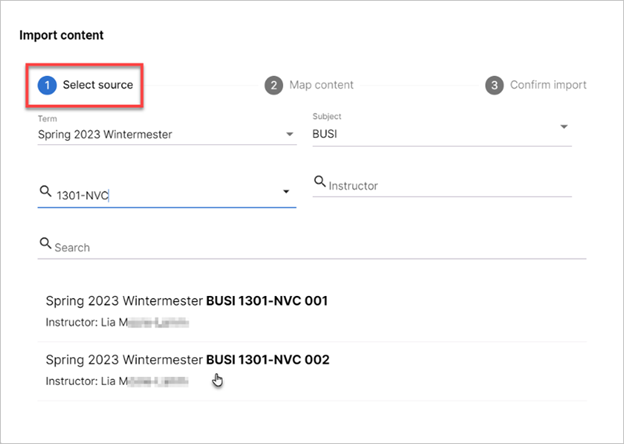
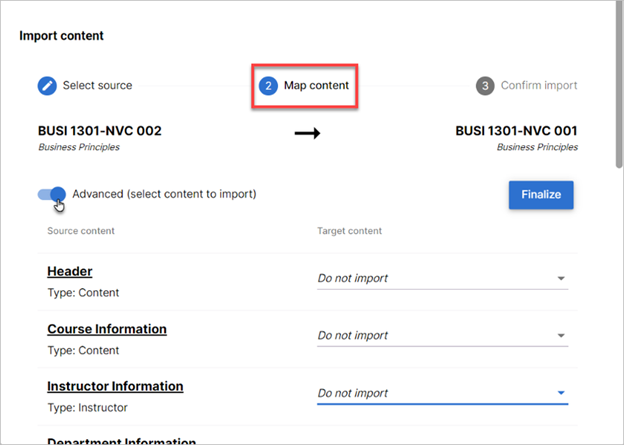
- Map Content: Choose which content from the syllabus you'd like to import:
- You can import all content by selecting the Finalize button; or
- You can specify content to import by enabling the Advanced slider and choosing which components to import and which ones to ignore. Click the
Finalize button once you've made your selections.
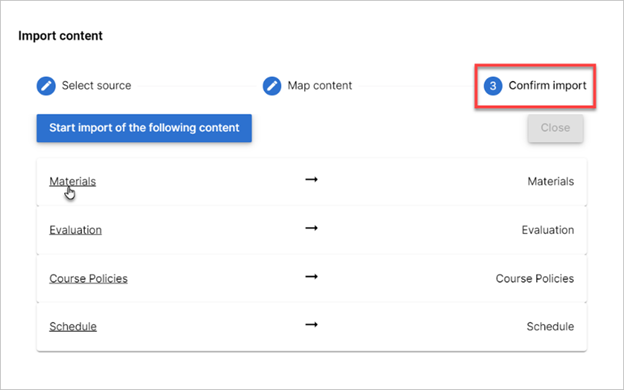
- Confirm Import: Preview and verify each component you'll be importing from the selected syllabus,
then select the Start import of the following content button.
A blue check mark will appear for each component once it has finished processing, and you'll be able to Close the dialog window to view and edit the imported content.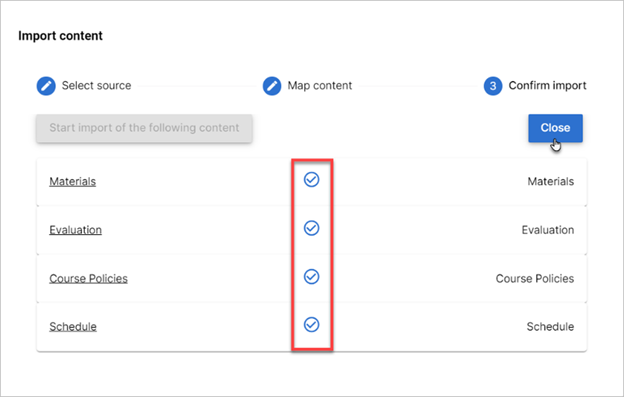
After finalizing your changes to the imported content, Submit the document to publish the syllabus.
- Launch your Canvas course shell.
- Open Simple Syllabus via the Navigation pane on the left.
- Scroll to the bottom and select Add Component.
- Title your component (e.g., Fall 2025 Syllabus), then save.
- Open the PDF file you want to share.
- Click “Share” in the top right corner of the PDF page.
- Then click the link icon that says, “Create link to share.”
- The Link will automatically be copied to your clipboard.
- In the component editor, use the Insert Link button to embed the link.
- Reorder the component as needed using the Reorder tool.
- Set other unused components to Invisible, then click Submit to finalize.
- Open your Canvas course shell.
- From the Navigation menu, select Simple Syllabus.
- Scroll down and choose Add Component.
- Title your component (e.g., Fall 2025 Course Overview), then save.
- Copy the URL for your Liquid Syllabus.
- In the component editor, use the Insert Link button to embed the link.
- Add 1–2 sentences to inform students that the link opens an external site (e.g., Google Docs or Google Sites).
- Reorder the component as needed using the Reorder tool.
- Set other unused components to Invisible, then click Submit to finalize.
- Open your Canvas course shell.
- From the left-hand Navigation menu, click Simple Syllabus.
- Scroll to the bottom and click Add Component.
- Enter a clear title (e.g., Fall 2025 Syllabus), then save.
- Open your Word document, press Ctrl + A to select all, then Ctrl + C to copy.
- Return to your new component in Simple Syllabus and paste (Ctrl + V) the full content.
- Use the Reorder tool (left navigation) to place the component in your preferred position.
- If you're not using other components, mark them as Invisible so only your version appears to students.
- Click Submit. Allow a few moments for the system to process and publish.
Rich Content Editor
Simple Syllabus provides plain text entry fields and a Rich Content Editor (RCE) to customize text formatting, apply heading structure, add rich media, or organize items into tables.
The RCE toolbar in Simple Syllabus allows you to apply:
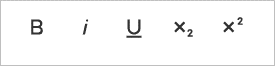
- Basic Formatting - Bold, italicize, or underline text. Apply subscript or superscript to characters and numbers.
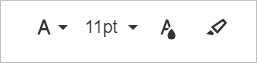
- Rich Formatting - Select a different font family or font size. Apply color to text and backgrounds.

- Paragraph Formatting - Apply heading structure and alignment to text, or create an ordered or unordered list. You will also find the options to indent paragraphs or insert a quote to emphasize a block of text. The paragraph tool allows you to set accessible headings within textboxes.

- Insert Objects - Insert a hyperlink; upload or link to an image; link, embed, or upload a video file; and insert a table. Emoticons are also available to insert into (or emphasize) text.
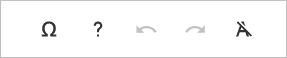
- Special Actions - Insert special characters, undo/redo an action, or clear formatting from selected text. Select the Help button [question mark icon] to view a list of keyboard shortcuts.
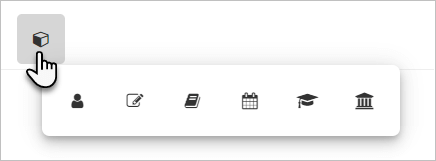
- Blocks Block of information are auto-populated with data from PeopleSoft (instructor, section, and course information) as well as attributes within Simple Syllabus (term, subject, and college information). If your information is incorrect, please notify Academic Affairs.
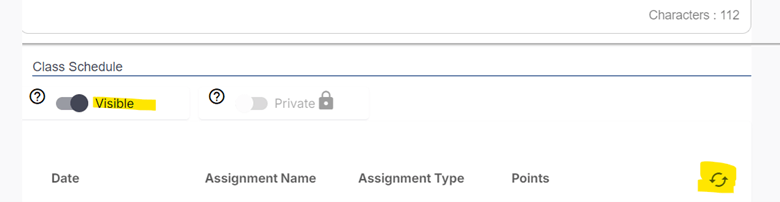
- Integrate the Canvas Calendar – Toggle the Class Calendar to Visible and click the integration button to include your Canvas class calendar.
Adding images and videos to Simple Syllabus is easy. Whether you want to include images with text or without, a Bitmoji or picture or course materials, here’s how you can do it:
Adding Images Without Text
- Go to your syllabus in Simple Syllabus.
- Open the template to edit.
- Navigate to the section where you want to add an image.
- Select the “Insert Image” icon.

- Choose "Drop Image" to upload from your computer or "Insert Hyperlink" to connect with an online item.
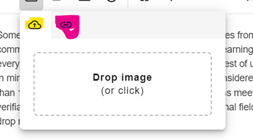
- Once your image is uploaded or linked, left click on the image to insert a caption. SAVE.
Adding Images With Text
- Go to your syllabus in Simple Syllabus.
- Open the template to edit.
- In Simple Syllabus, navigate to the section where you want to insert the image.
- Select the table feature and choose two columns.

- Cut and paste the image into one column and place your text in the other column.
- Left click on the image to insert an image caption. SAVE.
Adding Videos
- Go to your syllabus in Simple Syllabus.
- Open the template to edit.
- In Simple Syllabus, navigate to the section where you want to insert the video.
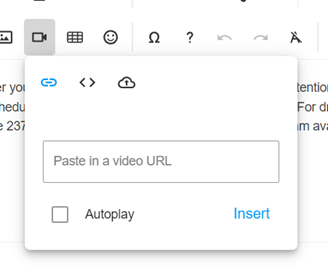
- Select the video feature from the edit menu.
-
From here, you can either upload a video from your computer or paste in a video URL.
-
Click insert. SAVE.
| Issue | Why It Matters | Typical Fix |
|---|---|---|
| Missing or incorrect alt text | Screen‑reader users miss essential information when images, charts, or icons aren’t described. | Add meaningful alt text that explains the purpose of the image; mark decorative images as decorative. |
| Low color contrast | Low‑contrast text is difficult to read for students with low vision or color‑blindness. | Use high‑contrast color(e.g., dark text on a light background). Avoid light gray text. |
| Missing table headers | Screen readers cannot interpret how information is organized without header rows. | Use built‑in table tools to designate header rows; avoid creating tables with tabs or spaces. |
| Improperly formatted lists | Screen readers cannot follow the sequence of items when lists are typed manually. | Use built‑in numbered or bulleted list tools; avoid typing numbers or dashes manually. |
Click the accessibility icon in Simple Syllabus to fix accessibility issues!

Faculty Should Manually Check the Following:
| Issue | Why It Matters | Typical Fix |
|---|---|---|
| Descriptive links (URLs) | Screen reader users navigate by jumping between links; clear text provides the necessary context to understand where a link leads. | Use descriptive labels instead of generic "click here" text or raw URLs to ensure each link's purpose is clear out of context. |
| Inaccessible PDFs (or other files) | Scanned or untagged PDFs are unreadable by assistive technologies. | Export accessible PDFs from Word/Google Docs; check tags, headings, and reading order. |
| Videos without captions or transcripts | Students who are deaf, hard of hearing, or who prefer reading cannot access the content. | Provide accurate (not automatically-generated) captions; add transcripts for audio‑only content; include audio descriptions. |
| Inaccessible third‑party tools | External platforms (forms, maps, plug‑ins) may not meet accessibility standards. | Use campus‑approved tools; provide accessible alternatives when needed. |
If you are teaching courses that are cross-listed, you will need to go directly to the Employee Portal and select the Simple Syllabus tile and login. From there, you can edit the syllabus for each course section. You can also preview the syllabus to see exactly what the students would see. Students will view the syllabus for their appropriate section directly from the Simple Syllabus navigation link in Canvas.
As the instructor, you will see an error message in Canvas when trying to view Simple Syllabus in a cross-listed course. This is because you are enrolled in more than one course section and the Simple Syllabus view only pulls one section for a user. As long as each syllabus for each course is complete, the students will see the syllabus that corresponds with their course section.
If the incorrect name appears on your syllabus, please email Dave Gunn, Jasmin Sanchez and Colleen McKinley.
Sharing your Simple Syllabus in your Course
As an instructor, there are different ways to publish your Simple Syllabus in your Canvas course
You can move Simple Syllabus to the top of your course navigation and hide the native syllabus tool in Canvas.
- In your course, click Settings.
- Select the Navigation tab.
- In the upper box, drag Simple Syllabus towards the top of the list. Disable the default Syllabus by selecting the three vertical dots and clicking 'Disable'.
- Click Save.
- After clicking Submit, an option to link to a PDF version of the syllabus in Simple Syllabus should appear.
- Paste this link into the Rich Content Editor in your Syllabus tab on Canvas. For assistance editing the Syllabus tab, view the Instructional Guide: Editing the Syllabus
- Click Save.
Note: Instructors and students must authenticate Simple Syllabus (either by clicking the Simple Syllabus navigation link or logging in directly to the Simple Syllabus portal)
Student View for the instructor only works if your syllabus access is set to Campus or Public. If your syllabus access is set to private, you will see an error message instead of the syllabus when viewing Student View. Instead, click “Preview” on the syllabus if you would like to see a finalized version of it. The student’s view is the same as the preview (and the instructor's view minus the “Edit syllabus” button & the analytics bar).
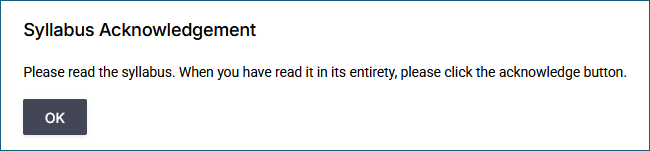
If your syllabus access is set to Public or Campus, you can view the syllabus in the Student View and see the Syllabus Acknowledgement Option. The acknowledgement message and an OK button appear immediately upon opening the Simple Syllabus for the first time, before you have a chance to read it.
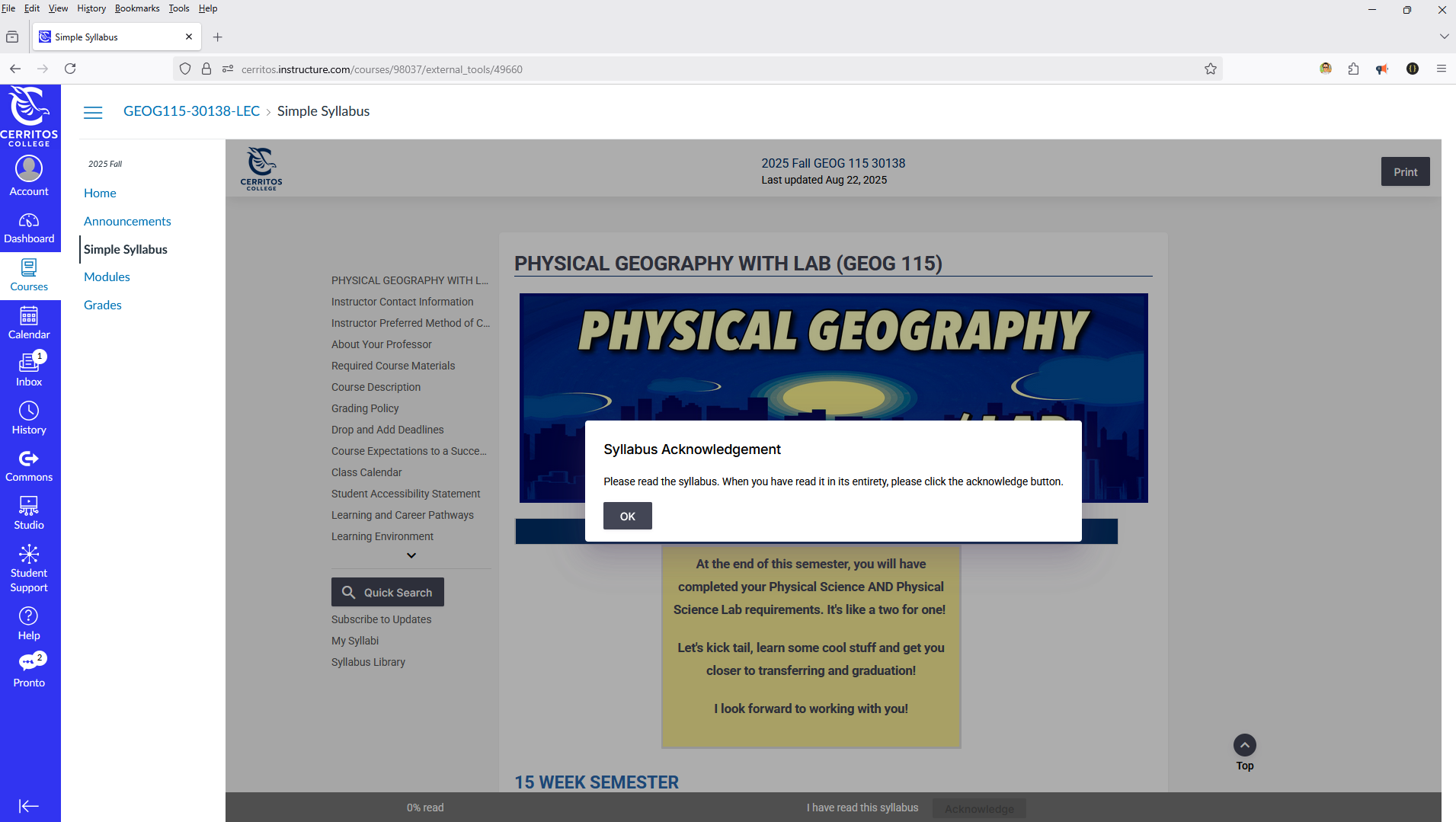
Then at the bottom of the page, you have a percentage indicator of how much you read.
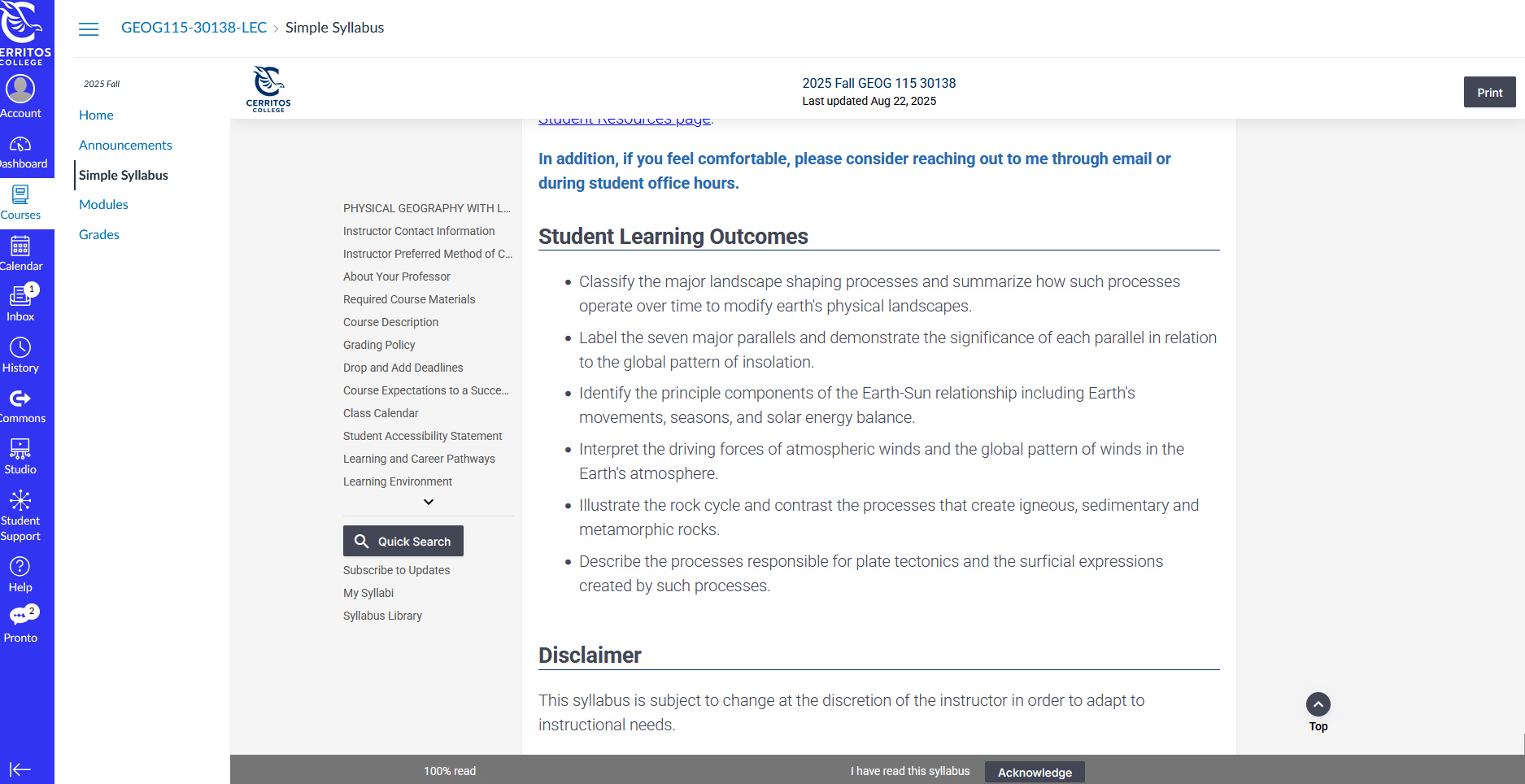
And once you get to the bottom, you again must click Acknowledge and then see a thank you message

If you are teaching courses that are cross-listed, you will need to go directly to the Employee Portal and select the Simple Syllabus tile and login. From there, you can edit the syllabus for each course section. You can also preview the syllabus to see exactly what the students would see. Students will view the syllabus for their appropriate section directly from the Simple Syllabus navigation link in Canvas.
As the instructor, you will see an error message in Canvas when trying to view Simple Syllabus in a cross-listed course. This is because you are enrolled in more than one course section and the Simple Syllabus view only pulls one section for a user. As long as each syllabus for each course is complete, the students will see the syllabus that corresponds with their course section.
If you have multiple Canvas accounts (instructor, student), you may receive an error message. Please reach out to Faculty Help for assistance.
If you are seeing incorrect SLOs, please e-mail SLO help with a description of the problem.
If there are typos, or SLOs are missing, please email Jasmin Sanchez and Colleen McKinley.
If your course description is incorrect, please email Jasmin Sanchezjsanchez@cerritos.edu and Colleen McKinley.
If the incorrect name appears on your syllabus, please e-mail David Gunn, Jasmin Sanchez and Colleen McKinley.